Not a Zoom expert? Have no fear. ATI is here!
The 4 best Zoom practices to make your online classroom stronger.
ATI Nursing Education Consultants Christine Heid, PhD, RN, CNE, CHSE, and Charlene Romer, PhD, RN, shared their Zoom best practices, tips, and tricks to help you and your students navigate the virtual-learning world a little easier.
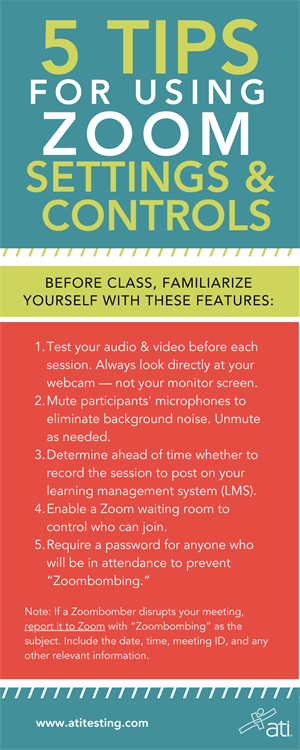
1. Become familiar with Zoom’s settings & controls.
- Test your audio/video before each class. Remember to always look directly at your webcam — not the screen.
- Mute participants' microphones to eliminate background noise. Unmute as needed.
- Determine ahead of time whether to record the session or lesson to post on your learning management system (LMS). (Get related details on the Zoom website re: Host controls, Managing participants in a meeting, and Recording.)
- Enable a Zoom waiting room so that you have control over who can join your meeting.
- Require a password for anyone who will be in attendance to prevent “Zoombombing.”
Note: If a Zoombomber disrupts your meeting, report it to Zoom with “Zoombombing” as the subject. Include the date, time, meeting ID, and any other relevant information.
DOWNLOAD THE INFOGRAPHIC AT RIGHT AS A HANDY REFERENCE
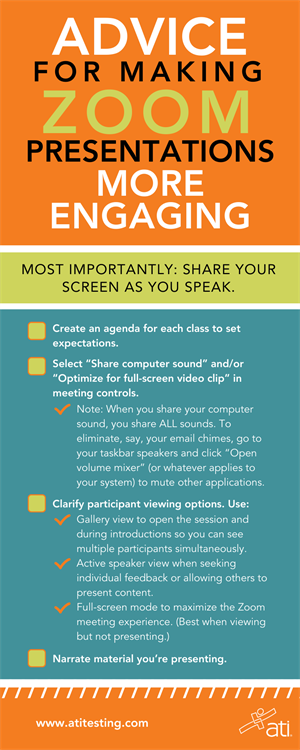
2. Share your screen as you speak for ultimate engagement.
 (Check the Zoom website for details on how to Share screen and Screen sharing a PowerPoint presentation.)
- Create an agenda for each class to set expectations.
- Select “Share computer sound” and/or “Optimize for full-screen video clip” in your meeting controls.
Note: When you share your screen, you also are sharing any sounds emanating from your computer, such as chimes that alert you to new emails or phone calls coming over your VOIP (voice over Internet protocols).
If you don’t want others to hear those sounds, search for your system's speaker settings using the search function in the task bar at the bottom of your screen. Then click on “Volume mixer” (or whatever applies to your system) to mute those sounds to your audience.
(If you can't find that setting, google your system's operating system + the words "volume mixer." Then follow those directions, or contact your IT department.)
- Clarify participant viewing options. (On the Zoom website, learn more at Video layout.) Make a recommendation based on how participants will (or will not) interact with your session:
¤ Gallery view is perfect for welcome and introductions to be able to see multiple participants simultaneously.
¤ Active speaker view is great when seeking individual feedback or presenting content.
¤ Full screen mode maximizes the Zoom meeting experience. (It’s helpful when viewing but not presenting.)
- Narrate the material you’re presenting. But make sure you aren't simply reading directly from your presentation. Provide additional tips or insight in addition to what students are seeing on their screens.
DOWNLOAD THE INFOGRAPHIC AT RIGHT AS A HANDY REFERENCE
3. Use the Zoom chat tool.
(See the Zoom website for details on In-meeting chat.)
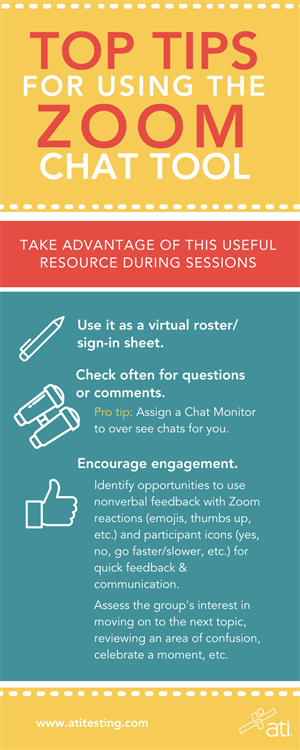
Take advantage of this useful resource during your sessions.
- Use it as a virtual roster/sign-in sheet. Have participants type their preferred name and email address to create a digital roster for easy follow up.
- Check often for questions or comments being posted by student questions.
Pro tip: Assign a Chat Monitor to oversee the chat for you. For a very large class, you may need more than 1.
- Encourage engagement with and among students.
¤ Identify opportunities to use nonverbal feedback with Zoom reactions (emojis, thumbs up/down, etc.) and participant icons (yes, no, go slower/faster, etc.) to allow for quick and fun feedback or communication.
¤ Quickly assess the group’s interest in moving on to the next topic, reviewing an area of confusion, celebrating a group share, and more.
DOWNLOAD THE INFOGRAPHIC AT RIGHT AS A HANDY REFERENCE
4. Promote student collaboration using Zoom’s active-learning features.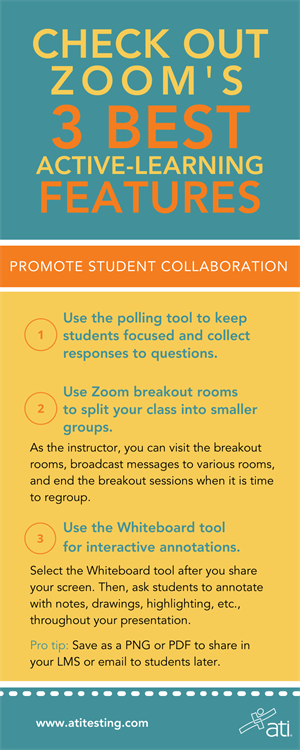
Zoom offers multiple features that allow for the types of active-learning opportunities that educators know are most effective in helping students retain information.
Here are 3 of the best for promoting student collaboration:
- The polling tool. Use this to keep students focused and collect responses to discussion questions. (See Zoom's website for details on Polling for meetings.)
- Breakout rooms. Using these allows you to split your class into smaller groups.
As the instructor, you can visit the breakout rooms, broadcast messages to various rooms, and end the breakout sessions when it is time to regroup. (See Getting started with breakout rooms and Managing breakout rooms.)
- The whiteboard. Select this tool after you share your screen. Then ask students to annotate with notes, drawings, stamping, highlighting, etc., throughout your presentation.
Pro tip: Make sure to save the annotated presentation as a PNG or PDF file by clicking “Save” on the annotation toolbar. Doing so will download it to your computer, allowing you to then upload it to your LMS or send it to students via email.
Most importantly, remember that, even though you may feel overwhelmed at times, it’s important not to give up. Education is always a work in progress.
DOWNLOAD THE INFOGRAPHIC AT RIGHT AS A HANDY REFERENCE
RESOURCES
University of Nevada, Reno. Best practices when teaching with Zoom. Retrieved from https://www.unr.edu/tlt/instructional-design/instructional-technology-resources/web-conferencing/zoom/best-practices.
University of Pittsburgh. Zoom meetings: Etiquette and best practices. Retrieved from https://www.technology.pitt.edu/blog/zoom-tips.